
iPad to Mac
Your Mac's desktop on your iPad, at home or away.
Anywhere shows your Mac's whole screen on your iPad and lets you work on it with touch, a trackpad or a keyboard. Leave the Mac on the desk and take the iPad.
Updated · macOS 15 or later · Windows 10 or 11 · Linux with Xorg · iOS 18 or iPadOS 18 or later · Android 10 or later
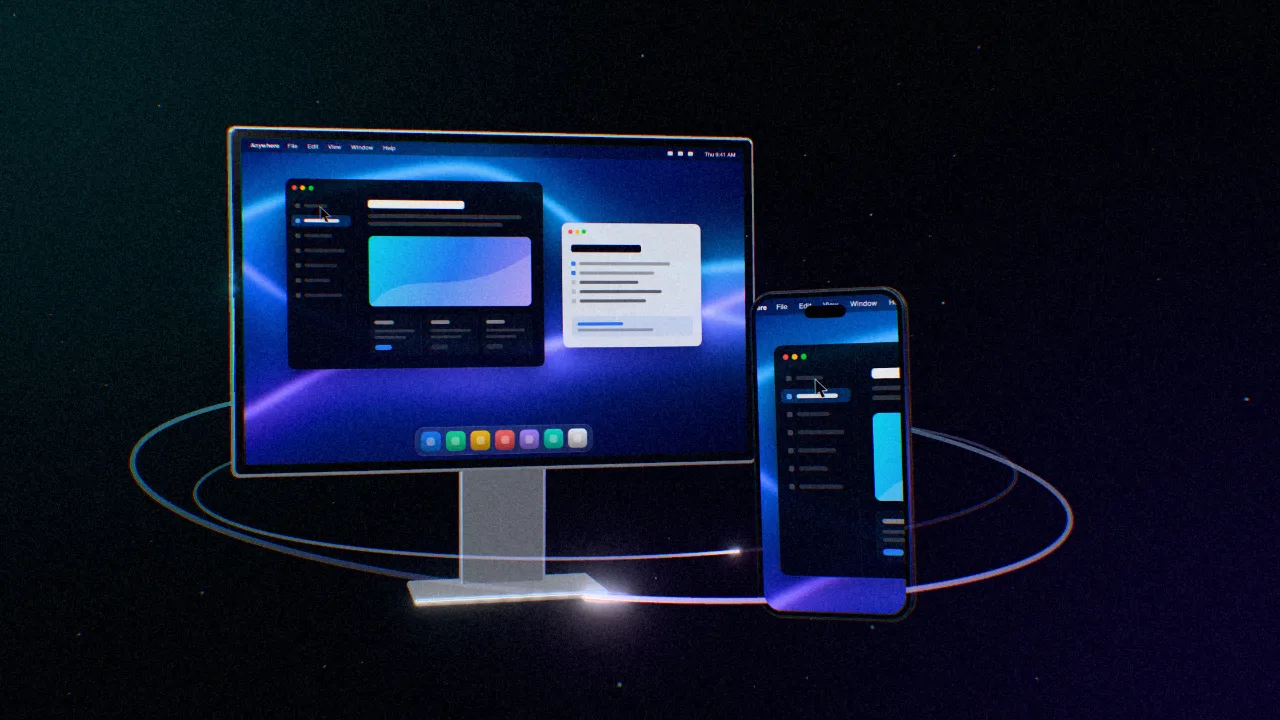
Sidecar, Universal Control and remote desktop are three different things
They are easy to mix up, because all three involve a Mac and an iPad.
| What you see on the iPad | Where it works | Good for | |
|---|---|---|---|
| Sidecar | An extra display for your Mac | Within about 10 metres of the Mac | More screen space at your desk |
| Universal Control | The iPad's own apps | Devices side by side | One keyboard and mouse for both |
| Anywhere | Your Mac's full desktop | Any network, anywhere | Using your Mac when you're not at it |
If the Mac is in front of you, Apple's two features are the right tools. If it isn't, you need remote desktop.
How to control your Mac from your iPad
- 1
Install Anywhere on your Mac
Download the Mac app and open it. It sits in the menu bar and needs macOS 15 or later.
- 2
Sign in and grant permissions
Sign in with your email address or Google, then allow Screen Recording and Accessibility when macOS asks. These let the Mac show its screen and accept your input.
- 3
Open Anywhere on your iPad
Sign in to the same account. Your Macs appear in a list, with the ones that are online marked.
- 4
Tap your Mac
Confirm with Face ID or Touch ID. The Mac's desktop fills the iPad's screen.
Touch, trackpad and keyboard
An iPad's screen is large enough to point at things directly, so on iPad a tap lands where you touch.
- Touch: tap to click, long-press or tap with two fingers to right-click, drag to drag, and scroll with two fingers. Pinch to zoom in on small text.
- Magic Keyboard or a trackpad: the pointer, buttons and scrolling map straight to the Mac, so it feels like a MacBook.
- Hardware keyboard: key presses go to the Mac as they are, so your shortcuts work. iPadOS keeps a few for itself, such as Command-Tab, and Anywhere's shortcut palette covers those.
The picture is sized for the iPad rather than scaled down from the Mac's full resolution, which keeps it fast. Zoom in and Anywhere asks the Mac for more detail.
What people use it for
A Mac mini with no screen
Keep a mini in a cupboard as a build machine or home server and use the iPad as its display when you need one.
The app that only runs on a Mac
Xcode, Final Cut Pro, a full browser with your extensions: open them on the Mac and drive them from the sofa.
Travelling light
Take the iPad and leave the MacBook at home, awake and reachable.
Checking on a long job
See how a render, export or download is getting on without walking back to the desk.
On any network, without setup
You don't forward ports, set up a VPN or look up an IP address. Both devices sign in to your account and find each other. They connect directly when the networks allow it, and through an encrypted relay when they don't.
Everything is encrypted end to end between the iPad and the Mac. Anywhere's servers set up the connection and never see your screen. Read how it's protected.
Good to know
Can I use my iPad as a remote desktop for my Mac?
Yes. With Anywhere on both devices, the iPad shows the Mac's full desktop and controls it with touch, a trackpad or a keyboard, on the same Wi-Fi or over the internet.
Is this the same as Sidecar?
No. Sidecar turns the iPad into a second display for a Mac that is nearby. Anywhere shows the Mac's own desktop on the iPad from anywhere, so you can use the Mac when you are not at it.
Does it work with the Magic Keyboard and trackpad?
Yes. Pointer movement, clicks, scrolling and key presses are passed to the Mac directly. A few shortcuts that iPadOS reserves, such as Command-Tab, are available from the shortcut palette.
Can I control an iPad from a Mac?
Not control. iPadOS doesn't let another device send it input. An iPad can share its screen to your Macs with Anywhere, view only.
Does my Mac have to be awake?
It has to be powered on, logged in and online. The Keep Active setting keeps it awake while you are away.
Take your Mac with you.
See and control your Mac from your phone, tablet or another computer. Install it on your Mac, Windows PC or Linux PC, sign in, and it's there whenever you need it.