
Mac remote desktop
Remote desktop for your Mac, without the network setup.
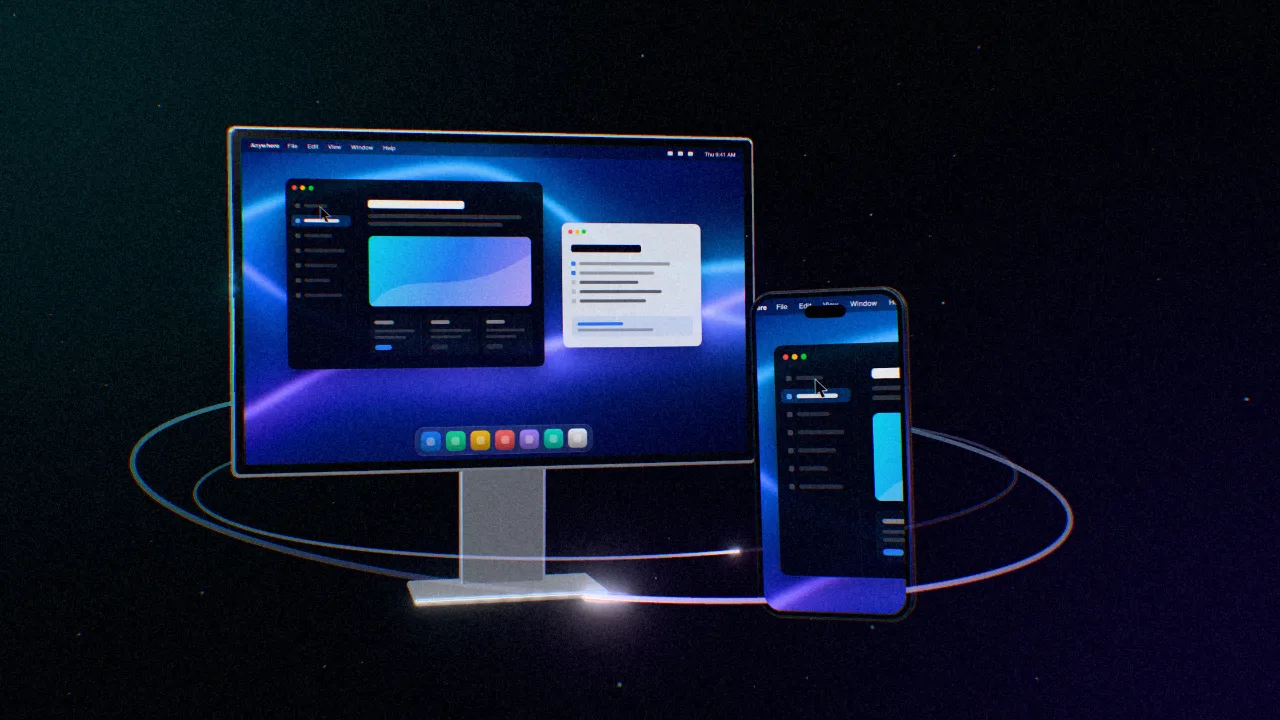
Anywhere is a remote desktop app for Mac. It shows your Mac's screen on another Mac and lets you control it, at home or away, with no ports to forward and no addresses to type.
Updated · macOS 15 or later · Windows 10 or 11 · Linux with Xorg · iOS 18 or iPadOS 18 or later · Android 10 or later
What remote desktop for a Mac needs
Every remote desktop setup has the same three parts.
- A host on the Mac you want to reach. It sends the screen as video and turns the clicks and key presses it receives into real ones.
- A viewer on the device in your hands. It shows that video and sends your pointer and keyboard back.
- A way for the two to find each other. On one network this is easy. Across the internet it is the hard part, because a Mac at home sits behind a router that turns away incoming connections.
The Mac must also be powered on, logged in and online.
What macOS includes, and where it stops
Apple ships several remote features. They overlap in name more than in function.
| Feature | What it does | Where it stops |
|---|---|---|
| Screen Sharing | Lets one Mac view and control another. It is based on VNC | From outside your network it needs a VPN, a forwarded port (5900) or a request someone at the Mac accepts. Apple makes no iPhone or iPad viewer |
| High Performance screen sharing | A higher quality mode of Screen Sharing between two Macs | Both Macs need Apple silicon and macOS 14 or later, plus a fast connection. One session per Mac |
| Apple Remote Desktop | A separate $79.99 Mac App Store app for managing many Macs | It doesn't add an iPhone client or internet reach by itself |
| Remote Login | SSH access to the Mac | A command line, not the screen |
If both Macs are always on the same Wi-Fi, Screen Sharing is all you need, and the Mac Screen Sharing guide covers it. The limits show up once you leave the building.
How to set up remote desktop on your Mac with Anywhere
- 1
Install Anywhere on the Mac you want to reach
Download the Mac app and open it. It is free to try for 14 days ($12 a month after that) and lives in the menu bar. It needs macOS 15 or later.
- 2
Sign in and allow two permissions
Sign in with your email address or Google. macOS then asks for Screen Recording, so the Mac can show its screen, and Accessibility, so it can move the pointer and type for you.
- 3
Install it on the Mac you will connect from
Open Anywhere there and sign in to the same account. Every device in the account sees the others.
- 4
Choose your Mac under Connect To
Click the Anywhere icon in the menu bar and pick the Mac. Its screen opens in a window, and your mouse, trackpad and keyboard control it.
There are no IP addresses, no router settings and no VPN. More on Mac to Mac, including dropping files onto the window.
What you can connect from
- Another Mac. This works today. A Mac can host and view at the same time, and can have several Macs open, one window each.
- An iPhone. The phone shows the Mac's screen and acts as its trackpad.
- An iPad. Tap where you want to click, or use a Magic Keyboard and trackpad.
The iPhone and iPad app is not yet on the App Store.
Anywhere reaches Macs, Windows PCs and Linux PCs, and each can connect to the others. Android phones and tablets connect with the app on Google Play. There is no web version, and it doesn't use VNC, RDP or Apple's Screen Sharing.
How the connection works
Both devices sign in to your account, and Anywhere's servers introduce them. They connect directly, peer to peer, when the two networks allow it. When they don't, an encrypted relay carries the stream.
The picture is hardware-encoded H.264 video, at up to 60 frames a second on a good link. On a weak link it lowers detail and frame rate rather than stalling.
Video, input and files are encrypted end to end between your devices. The relay cannot decrypt them, and Anywhere's servers never see your screen.
Keeping the Mac reachable
A locked Mac is fine: you see the lock screen and type the Mac's password. A Mac that is switched off, logged out, or waiting at the login window after a restart can't be reached.
Sleep is the usual culprit, and Anywhere's Keep Active setting deals with it. Choose Never, On power, or Always, which keeps the Mac awake on battery too, down to a battery level you choose. A MacBook normally sleeps when its lid closes, so leave the lid open. More on keeping a Mac awake.
While a session is active the Mac shows a menu bar indicator, and Stop Sharing ends it at once.
When another tool is the better choice
- You want to reach a Windows PC over RDP. Microsoft's Windows App on your Mac is the tool for RDP to a PC running Windows Pro. Anywhere can control a Windows PC too, once Anywhere for Windows is installed on that PC and both computers are signed in to the same account.
- You need an iPhone or iPad app today. Jump Desktop has one, and it connects in a similar way.
- Both Macs are always on the same network. Screen Sharing is built in and needs nothing installed.
- You manage many Macs. Anywhere has no team or admin features. Apple Remote Desktop is built for that.
Good to know
Does macOS have a built-in remote desktop?
Yes. It is called Screen Sharing, and you turn it on in System Settings > General > Sharing. It lets another Mac view and control yours on the same network. From outside that network it needs a VPN or a forwarded port.
What is the Mac equivalent of RDP?
Screen Sharing is the closest built-in equivalent. It is based on VNC rather than RDP, which is Microsoft's protocol for reaching Windows PCs. Third-party apps such as Anywhere use their own connection instead of either.
How do I enable remote desktop on my Mac?
Open System Settings > General > Sharing and turn on Screen Sharing for other Macs on your network. To reach the Mac over the internet without changing your router, install a remote desktop app such as Anywhere on it and sign in.
Does Apple have a remote desktop app?
Yes, two. Screen Sharing is built into macOS, and Apple Remote Desktop is a separate $79.99 Mac App Store app for managing many Macs. Neither includes an iPhone client or a way to reach a Mac over the internet by itself.
Is there a free remote desktop app for Mac?
Screen Sharing is free and built into macOS. Anywhere's Mac app is free to try for 14 days ($12 a month after that) and connects one Mac to another on any network.
Sources
Prices and features of other products were read from these pages on November 21, 2026 and may have changed since.
Take your Mac with you.
See and control your Mac from your phone, tablet or another computer. Install it on your Mac, Windows PC or Linux PC, sign in, and it's there whenever you need it.