
iPhone as trackpad
Your iPhone as your Mac's trackpad, with the screen included.
Anywhere turns your iPhone into a trackpad and keyboard for your Mac, and shows the Mac's desktop on the phone as well. So it still works when the Mac is in another room, or another city.
Updated · macOS 15 or later · Windows 10 or 11 · Linux with Xorg · iOS 18 or iPadOS 18 or later · Android 10 or later
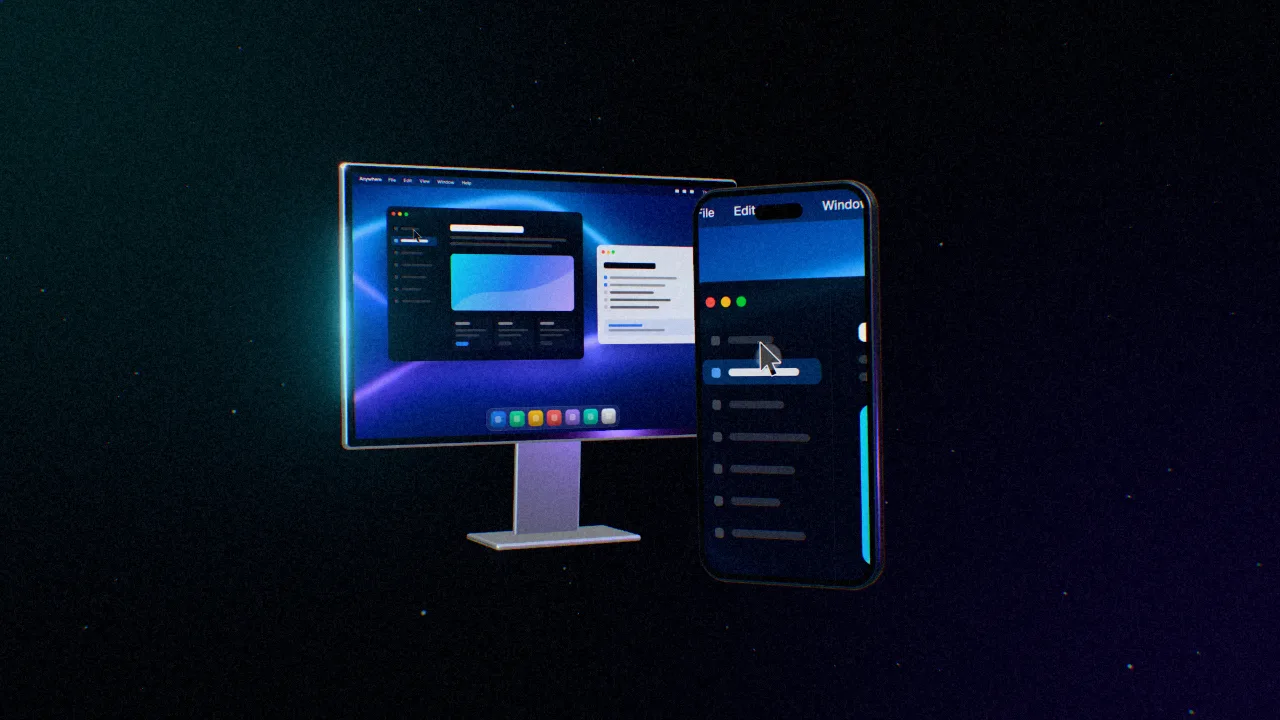
Trackpad only, or trackpad with the screen
Both kinds of app move the Mac's pointer from your phone. The difference is where you look while you do it.
| Trackpad-only app | Anywhere | |
|---|---|---|
| What the phone shows | A touch surface and a keyboard | The Mac's desktop, with the whole phone acting as the trackpad |
| Where you look | At the Mac's own display | At the phone, or at the Mac if it is in view |
| Where it works | Wherever you can see the Mac | On any network, including cellular |
| Suits | A Mac connected to a TV or a projector | A Mac in another room, or at home while you travel |
Neither kind is better in general. One is for when you can see your Mac but can't reach it. The other is for when you can't see it at all.
How to use your iPhone as a trackpad for your Mac
- 1
Install Anywhere on your Mac
Download the Mac app and open it. It lives in the menu bar and needs macOS 15 or later.
- 2
Sign in and allow two permissions
Sign in with your email address or Google. macOS asks for Screen Recording and Accessibility. The second is what lets the phone move the pointer and type.
- 3
Open Anywhere on your iPhone
Sign in to the same account. Your Mac appears in the list.
- 4
Tap your Mac
Confirm with Face ID or your passcode. The Mac's desktop appears, and the phone is now its trackpad.
- 5
Drag to move the pointer
The pointer moves relative to your finger, as it does on a MacBook trackpad. Tap to click.
The trackpad gestures
Trackpad mode is the default on iPhone. You don't have to touch the exact spot you want to click, which matters on a screen this small.
| On the iPhone | On the Mac |
|---|---|
| Drag one finger | Moves the pointer |
| Tap | Click |
| Tap with two fingers | Right-click |
| Double-tap, hold, then drag | Drags a window, a file or a selection |
| Drag two fingers | Scroll |
| Pinch | Zooms your view of the Mac. The Mac's own screen doesn't change |
| Tap with three fingers | Shows or hides the keyboard |
The keyboard adds a row of keys a phone lacks: Esc, Tab, the arrow keys, and Command, Option, Control and Shift. The modifier keys are sticky, so you can tap Command and then C to copy.
Why the screen is on the phone too
A trackpad with no picture is only useful while the Mac's display is in front of you. Putting the desktop on the phone removes that limit.
- From the sofa. The Mac is across the room and its text is too small to read. Pinch to zoom in on the phone, and Anywhere asks the Mac for more detail.
- From another room. Check a download or answer a dialog without walking back to the desk.
- From anywhere else. The two devices connect directly when their networks allow it and through an encrypted relay when they don't, so it works over cellular with no port forwarding.
The Mac's own display keeps showing the same thing, so when you can see it, you can look at either. More on controlling a Mac from an iPhone.
Which to pick
A Mac plugged into a TV
You can see the picture from the sofa and only need a pointer. A trackpad-only app is enough.
Presenting from your Mac
The slides are on the big screen and you only want to click through them. A trackpad-only app is the simpler tool.
A Mac in another room
You can't see the display, so you need it on the phone. This is what Anywhere is for.
A Mac at home while you're out
You need the screen and a connection that works across networks. Pick Anywhere or another remote desktop app.
If you need something on your iPhone today, a trackpad-only app from the App Store is the practical choice.
What Apple includes
Apple has no feature that turns an iPhone into a trackpad for a Mac. The ones that sound close do something else.
- Universal Control shares one keyboard and mouse between a Mac and an iPad sitting side by side. It isn't for iPhone.
- iPhone Mirroring shows and controls an iPhone from a Mac. That is the reverse direction.
- Switch Control is an accessibility feature that can drive another Apple device on the same Wi-Fi. It is built for switch access, not as a trackpad.
Before you rely on it
The Mac has to be powered on, logged in and online. If it is locked, you see the lock screen and type the Mac's password from the phone. A MacBook normally sleeps when its lid closes, so leave the lid open. How to keep a Mac awake.
The iPhone asks for Face ID or your passcode before each connection, and everything sent between the phone and the Mac is encrypted end to end. On the Mac, a menu bar indicator shows that a session is active.
Good to know
Can I use my iPhone as a touchpad for my MacBook?
Yes, with an app on both the iPhone and the MacBook. Anywhere turns the phone into a trackpad with tap to click, two-finger scrolling and right-click, and shows the MacBook's screen on the phone as well.
How do I use my iPhone as a trackpad?
Install an app such as Anywhere on the Mac and the iPhone, sign in to the same account on both, and tap your Mac in the iPhone app. Drag one finger to move the pointer and tap to click.
Can I use my phone as a remote control for my MacBook?
Yes. A trackpad-only app works when you can see the MacBook's screen. A remote desktop app such as Anywhere also puts the screen on the phone, so you can control the MacBook from another room or over cellular.
Can I use my iPhone as a keyboard for my Mac?
Yes. In Anywhere, tap with three fingers to show the keyboard. An extra row adds Esc, Tab, arrow keys and sticky Command, Option, Control and Shift keys for shortcuts.
Do the iPhone and the Mac have to be on the same Wi-Fi?
Not with Anywhere. The two devices connect directly when their networks allow it and through an encrypted relay when they don't, so it works on cellular and on other Wi-Fi networks.
Sources
Prices and features of other products were read from these pages on November 21, 2026 and may have changed since.
Take your Mac with you.
See and control your Mac from your phone, tablet or another computer. Install it on your Mac, Windows PC or Linux PC, sign in, and it's there whenever you need it.