
Headless Mac mini
A Mac mini with no monitor, and a screen wherever you are.
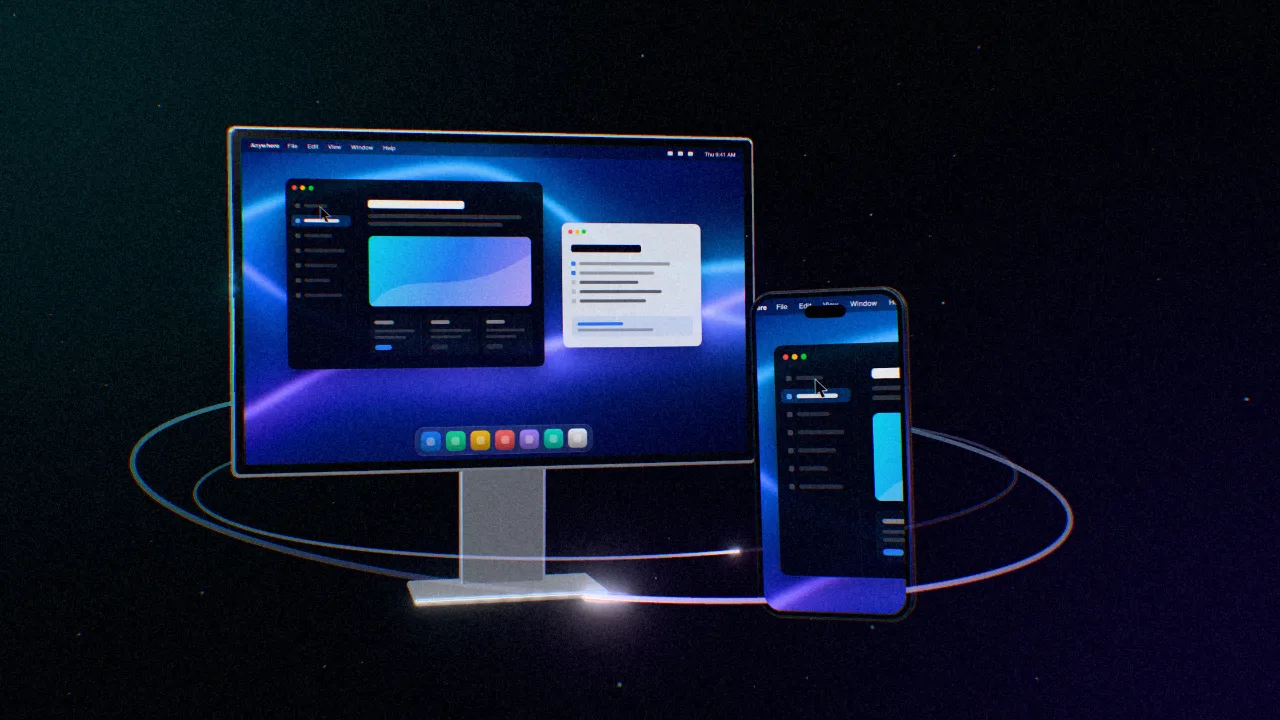
A Mac mini with Apple silicon runs without a display attached. Set it up once, put it on a shelf, and let a MacBook, an iPad or an iPhone be its screen, keyboard and trackpad when you need one.
Updated · macOS 15 or later · Windows 10 or 11 · Linux with Xorg · iOS 18 or iPadOS 18 or later · Android 10 or later
First setup needs a display, once
You can't skip the monitor on day one. You have to log in to macOS, and the two permissions a remote desktop app needs are granted on the Mac itself. Borrow a TV, a keyboard and a mouse for the setup.
- 1
Connect a display, keyboard and mouse
A TV works as the display. Finish the macOS setup and log in to your user account.
- 2
Install Anywhere and sign in
Download the Mac app and open it. It lives in the menu bar and needs macOS 15 or later. Sign in with your email address or Google.
- 3
Allow Screen Recording and Accessibility
macOS asks for both. The first lets the mini show its screen. The second lets it accept your pointer and keyboard.
- 4
Set it to stay awake
Set Keep Active to On power, and check System Settings > Energy. The next section has the details.
- 5
Connect from your other device
Sign in to the same account on your MacBook, iPad or iPhone and choose the mini. Do this once while the display is still attached, so you can see both ends working.
- 6
Unplug the display and try again
Disconnect the monitor, keyboard and mouse, then connect once more. Make sure the mini is reachable this way before it goes on the shelf.
Keep it awake, and bring it back after a power cut
A mini that sleeps is a mini you can't reach. Desktop Macs keep their sleep settings in System Settings > Energy.
- Set the mini there so it doesn't go to sleep by itself.
- Turn on Start up automatically after a power failure, so it switches itself back on when the power returns.
- In Anywhere, set Keep Active to On power. A mini is always plugged in, so this keeps it awake whenever it is running.
Don't count on waking it from afar. Wake for network access lets a sleeping Mac wake for some requests on its local network. It is not a reliable way to wake a Mac over the internet. More on keeping a Mac awake.
What happens after a restart
This is the part that catches people out. Anywhere can reach the mini when it is powered on, logged in and online. A locked screen is fine: you see it and type the password. The login window is not.
- With FileVault on, a restarted Mac waits at the unlock screen, and no remote desktop app is running yet. Someone has to type the password at the mini.
- Logged out means not reachable, with or without FileVault.
- For a restart you plan, run
sudo fdesetup authrestartin Terminal on the mini. It restarts the Mac and unlocks it once.
A power cut is the unplanned case. The mini starts up again by itself, but with FileVault on it then waits at the unlock screen. If it lives somewhere you can't easily get to, plan for that visit.
Use a MacBook, an iPad or an iPhone as its screen
- A MacBook or another Mac. Choose the mini under Connect To in the menu bar and its desktop opens in a window. Your keyboard and trackpad control it, and files or folders you drop on the window are copied to the mini's Desktop. Mac to Mac works today. Mac to Mac in detail.
- An iPad. Tap where you want to click, or attach a Magic Keyboard and trackpad and use the mini like a laptop. Controlling a Mac from an iPad.
- An iPhone. The phone works as a trackpad with the mini's screen on it, which is enough to check on a job or restart a stuck app. Controlling a Mac from an iPhone.
It is the same on your home Wi-Fi and away from it. The devices connect directly when the networks allow it and through an encrypted relay when they don't. There is no port forwarding to set up and no IP address to remember.
The screen a headless mini presents
With no monitor attached, a Mac mini with Apple silicon typically presents a 1920 x 1080 screen. That is the desktop a remote desktop app captures and sends.
If you want a different resolution, a display emulator plug is the usual answer. It costs a few dollars and gives the mini other resolutions to offer.
Anywhere sizes the picture to the screen you are viewing on and asks for more detail when you zoom in, so a phone isn't sent more than it can show.
When another tool fits better
- You only need a command line. Remote Login, in System Settings > General > Sharing, gives you SSH. It is a command line, not the screen.
- The mini never leaves your home network and you use another Mac. Screen Sharing is built in.
- You run many Macs. Apple Remote Desktop is a separate $79.99 Mac App Store app for managing them. Anywhere has no team or admin features.
- You want sound from the mini. Anywhere doesn't stream audio.
Good to know
Can a Mac mini run without a monitor?
Yes. A Mac mini with Apple silicon runs with no monitor attached and typically presents a 1920 x 1080 screen. You need a display once, for the first setup.
Do I need a dummy HDMI plug for a headless Mac mini?
Not to run it. A display emulator plug costs a few dollars and is worth adding if you want a resolution other than the 1920 x 1080 the mini typically presents with nothing attached.
Can I control a Mac mini from my iPhone?
Yes, with a remote desktop app on both. In Anywhere the iPhone shows the mini's screen and works as its trackpad and keyboard, on Wi-Fi or cellular.
What happens if my headless Mac mini restarts?
It can't be reached until someone logs in. With FileVault on it waits at the unlock screen, where no remote desktop app is running yet. For a planned restart, sudo fdesetup authrestart restarts and unlocks it once.
How do I stop a Mac mini from sleeping?
Change the sleep setting in System Settings > Energy, and turn on Start up automatically after a power failure. Anywhere's Keep Active setting, set to On power, also keeps the mini awake.
Sources
Prices and features of other products were read from these pages on November 21, 2026 and may have changed since.
Take your Mac with you.
See and control your Mac from your phone, tablet or another computer. Install it on your Mac, Windows PC or Linux PC, sign in, and it's there whenever you need it.